
🔥 Firestick Installation Guide (New & Old Devices)
- Cyber Crypto & Legazy Systems Team
- Mar 12
- 2 min read
If you're installing the Legazy Systems app on an Amazon Firestick, follow the step-by-step guide below. These instructions work for both older Firestick models and newer devices (2023–2025).
This guide will help you enable developer options, allow unknown apps, and install the app using the Downloader application.

✅ Step 1: Enable Developer Options
Go to Settings ⚙️ on your Firestick.
Select My Fire TV.
Click About.
Highlight Fire TV Stick 4K.
Press the OK button 7 times on your remote.
👉 A message will appear:“You are now a developer.”
This unlocks additional settings needed to install third-party apps.

✅ Step 2: Enable Unknown Apps (Important)
Go back to My Fire TV.
Open Developer Options.
Depending on your Firestick model, you will see different options.
🔹 Older Firestick Models
Turn ON the following:
ADB Debugging
Apps from Unknown Sources
🔹 New Firestick Models (2023–2025)
Select Install Unknown Apps
Turn Downloader → ON
⚠️ On newer devices this replaces “Apps from Unknown Sources.”

✅ Step 3: Install the Downloader App
Go to the Home Screen.
Click the Search 🔍 icon.
Type Downloader.
Install the orange Downloader app.
This app allows you to install apps using direct download links.

✅ Step 4: Install the App
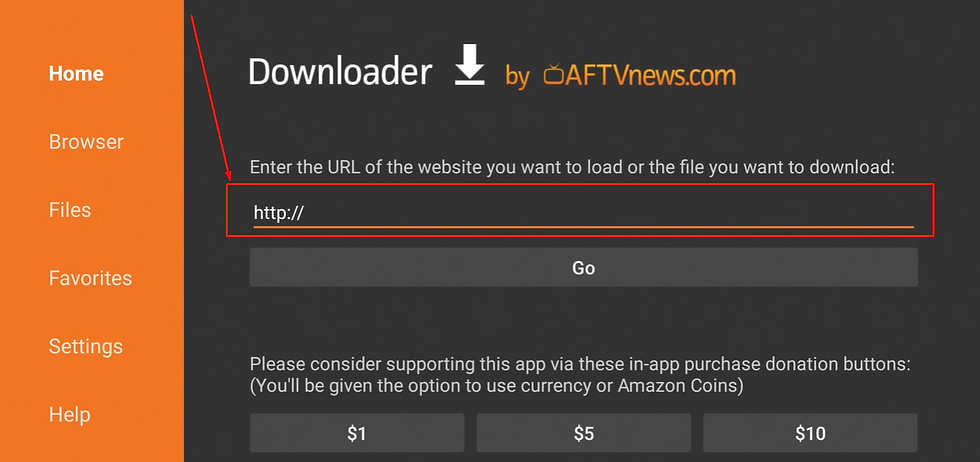
Open the Downloader app.
Allow any permissions requested.
Enter the following link:
Click Go.
Select Install.
✅ Installation Complete
Once installation finishes, open the app and log in using the credentials provided in your email.
If you need help with login or installation, please contact our support team.
Need Help Installing?
If you experience any issues installing the app, our support team is here to help.
Contact support and we will guide you through the installation process.
You can also check our pricing plans and service options on our website.

Comments